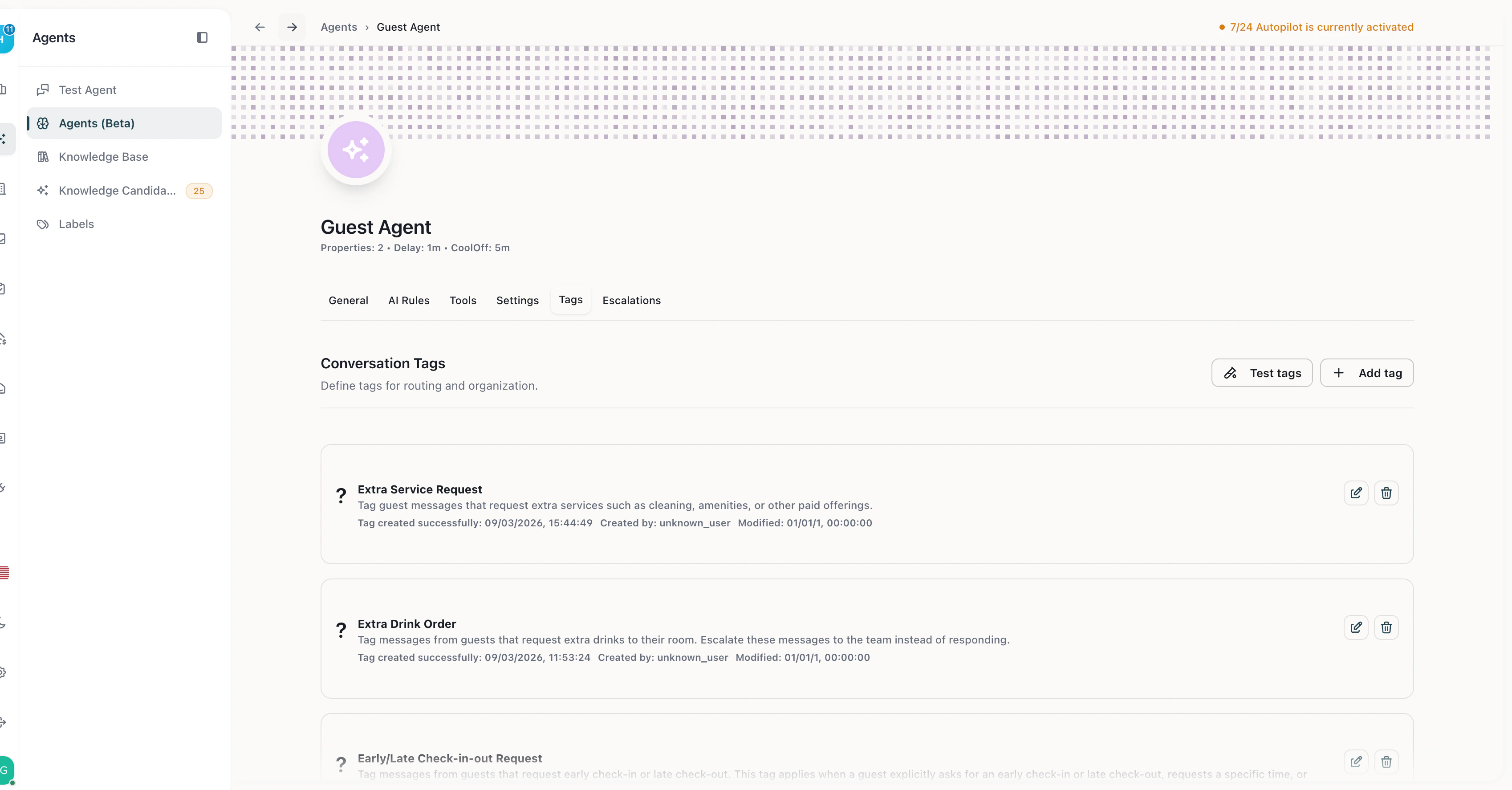

Cendra conversation tags automatically categorize guest messages by urgency and topic. Tags help the AI understand the nature of each message and route it appropriately — whether that means responding automatically, flagging for review, or escalating to your team.

How Tags Work

When a guest sends a message, Cendra’s AI evaluates it against your configured tags. If the message matches a tag’s criteria, the tag is applied to the conversation. Tags can trigger escalation rules, appear in the inbox for filtering, and help you track patterns.

Tag Configuration

Each tag has four components:
ComponentDescription
TitleTag name (e.g., “Complaint”, “Maintenance Request”, “Check-in Question”)
IconEmoji for visual identification in the inbox
Escalation LevelUrgency classification: Low, Medium, High, or Urgent
DescriptionDetailed explanation of when this tag should apply — this is what the AI reads to decide if a message matches

Escalation Levels

LevelColorTypical use
LowGreenRoutine questions, general inquiries
MediumYellowImportant but not time-sensitive requests
HighOrangeIssues requiring prompt attention
UrgentRedCritical situations requiring immediate human intervention

Example Tags

TagIconLevelWhen to apply
Complaint😤HighGuest expresses frustration, anger, or dissatisfaction
Maintenance🔧HighGuest reports a broken appliance, plumbing issue, or property damage
Check-in Help🏠MediumGuest needs help with check-in process or access
Pricing Question💰LowGuest asks about rates, fees, or discounts
CancellationUrgentGuest wants to cancel or modify their reservation
Positive FeedbackLowGuest shares compliments or positive experience

Testing Tags

Before deploying, test your tags in the Agent Hub:
  1. Navigate to your agent’s Tags tab
  2. Enter a test message in the test input field
  3. Cendra shows which tags would match the message
  4. Adjust tag descriptions until matching is accurate

Tags + Escalation Rules

Tags work together with escalation rules. Create an escalation rule that triggers when a message matches an urgent tag — this automatically routes critical conversations to your team.

Tags + AI Rules

Tags also connect to AI Rules. Apply an AI Rule restriction to a specific label, and the rule only activates when conversations match certain conditions.