

How AI Rules Work
AI Rules are checked before every response the AI generates. If a rule applies to the current conversation, the AI follows it — regardless of what the guest asks. There are two types of rules:
Navigate to Agent Hub → your agent → AI Rules to configure guardrails: https://app.cendra.ai/agents
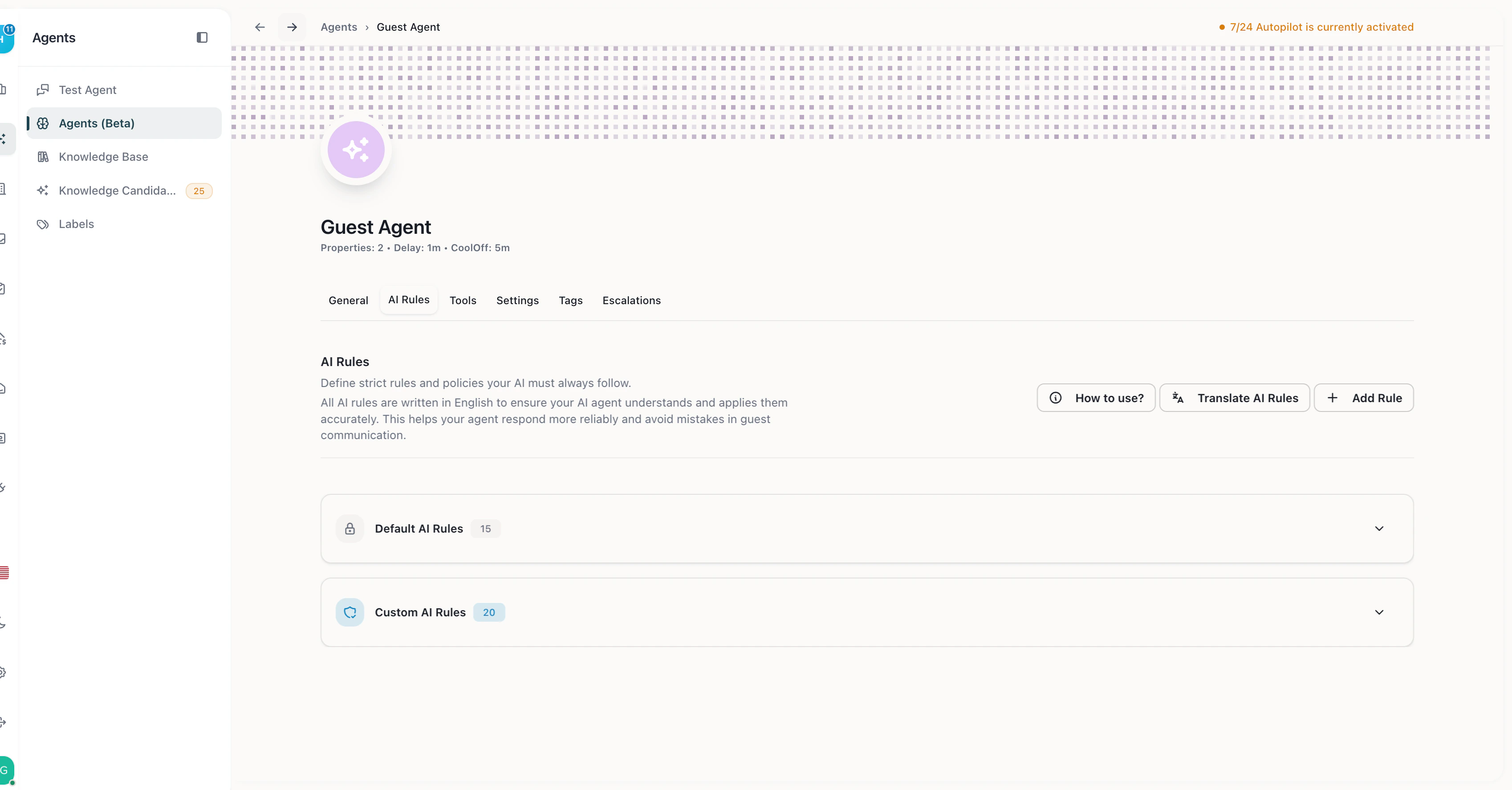
AI Rules tab — Default and Custom rule categories with natural language rule creation
Default Rules
Cendra includes built-in safety rules that cannot be modified or deleted. These cover:- Payment information handling
- Data privacy boundaries
- Escalation triggers for sensitive topics
- Baseline safety constraints
Custom Rules
Create rules that match your business needs. Each rule has:- Title — short description of the rule
- Description — detailed text explaining what the AI should or should not do
Example Custom Rules
Conditional Rules with Labels
AI Rules can be restricted to specific labels, making them apply only when certain conditions are met. For example:- A rule that only activates for VIP guests (labeled “VIP”)
- A rule that changes behavior for returning guests (labeled “Returning Guest”)
- A rule that applies different escalation thresholds for high-value bookings
CORA — Conversational Orchestration & Rule Agent
CORA is Cendra’s natural language rule creation system. Instead of navigating dashboards and filling out forms, you describe what you want in plain English — and CORA translates it into functional AI rules, labels, tags, and behavioral policies automatically.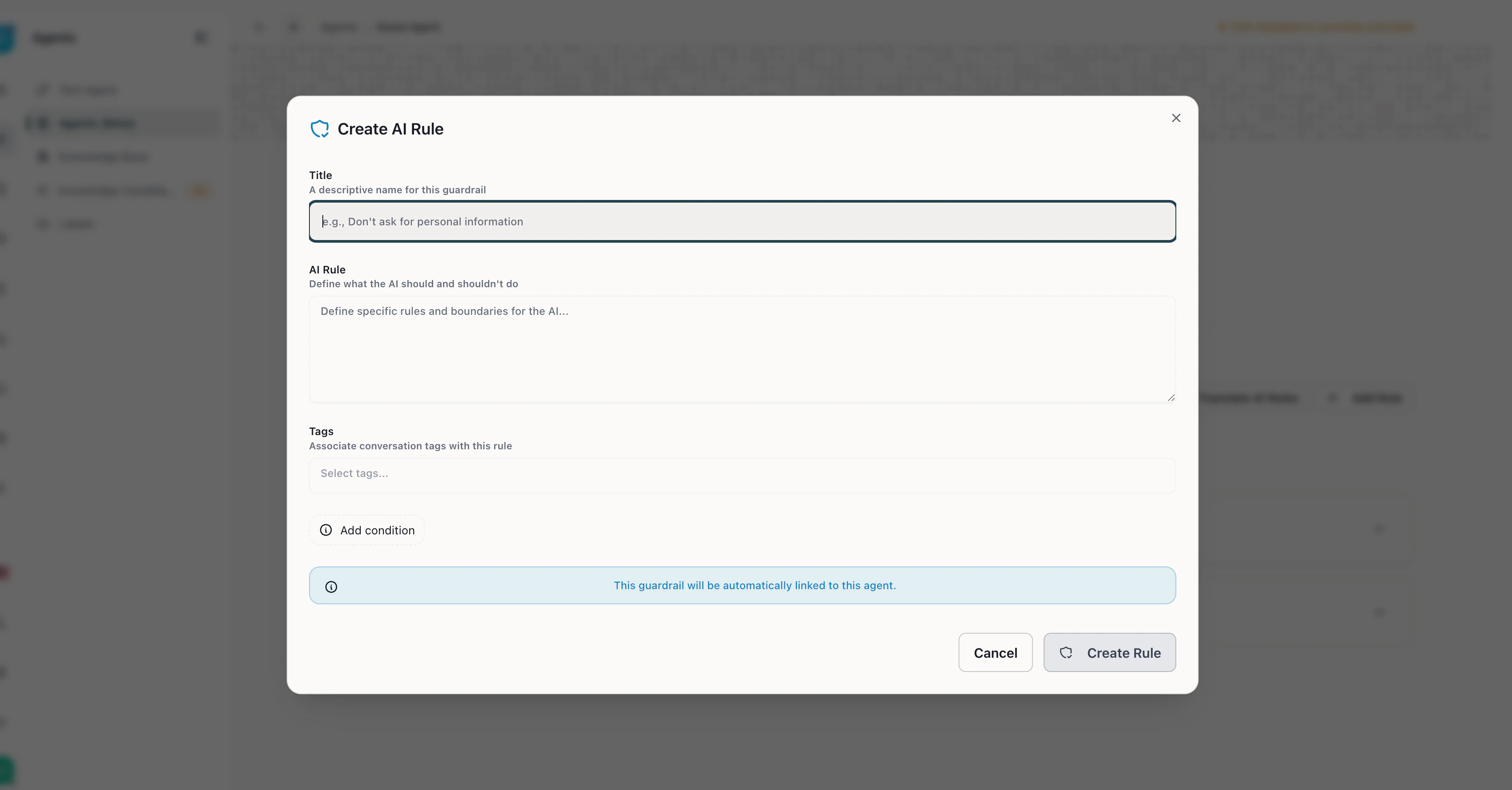
CORA AI Rule Creator — describe rules in natural language, associate tags, and add conditional restrictions
How CORA Works
- Click “Add Rule” in the AI Rules tab to open CORA’s rule creator
- Write a title — a descriptive name (e.g., “Don’t ask for personal information”)
- Describe the rule in natural language — tell CORA what the AI should or shouldn’t do (e.g., “Never promise refunds without manager approval”)
- Associate tags — optionally link the rule to conversation tags so it only applies to specific scenarios
- Add conditions — optionally restrict the rule to specific labels (e.g., only for VIP guests)
- Create Rule — the rule goes live immediately, no restart required
What CORA Can Create
Why CORA Matters
Property managers told us: “Cendra’s AI works great when set up right — but setting it up feels like programming.” CORA eliminates this setup friction. Instead of learning how labels, tags, and rules connect, you just describe what you want in conversation. CORA handles the rest.- Lower barrier — no technical knowledge required to create complex rules
- Conflict detection — CORA checks new rules against existing ones to prevent conflicts
- Higher automation coverage — more rules correctly configured = more messages handled by AI
Managing AI Rules
- Create — click “Add Rule” and define the title and description
- Edit — click any existing custom rule to modify it inline
- Delete — remove custom rules you no longer need
- Rules are sorted by creation date (newest first)
- Changes take effect immediately — no restart required