

How Labels Work
Labels use a condition builder to define rules. When a conversation matches the conditions, the label is automatically applied. Labels can then be used to:- Filter conversations in the inbox
- Trigger AI Rules — apply specific guardrails only to labeled conversations
- Route conversations — direct labeled conversations to specific team members
- Track patterns — monitor how many conversations match each condition
Label Configuration
Navigate to Agent Hub → Labels to create and manage labels: https://app.cendra.ai/labels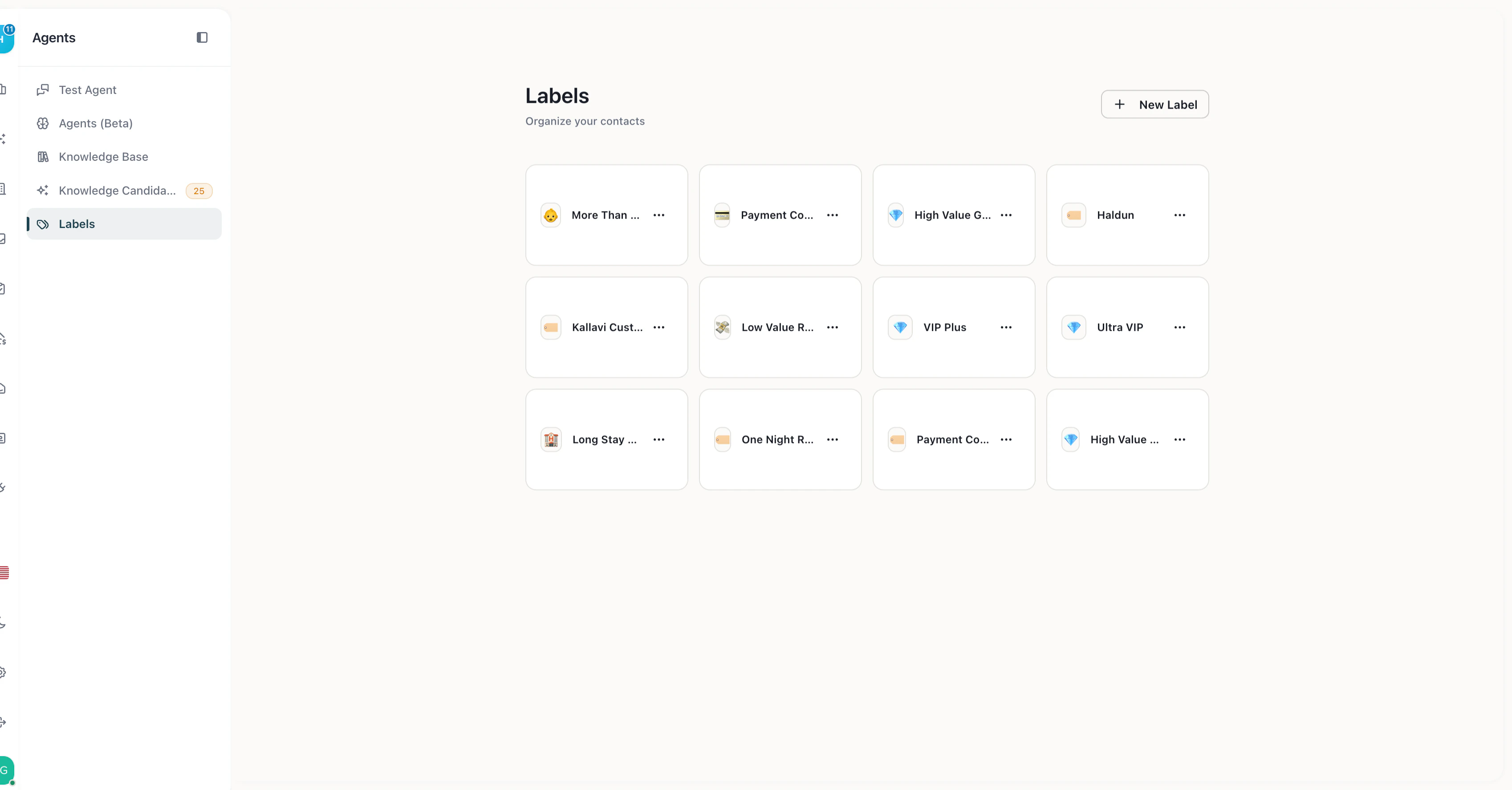
Labels page — emoji-tagged labels for organizing conversations
- Name — descriptive label (e.g., “VIP Guest”, “Long Stay”, “Returning Guest”)
- Icon — emoji for visual identification
Condition Builder
Labels use a visual condition builder with these fields:Operators
Each field type supports different operators:Example Labels
Labels + AI Rules
Labels connect to AI Rules for conditional guardrail enforcement. When you create an AI Rule, you can restrict it to specific labels — the rule only applies when the conversation has that label. Example: Create a rule “Offer 10% discount for long stays” restricted to the “Long Stay” label. The AI only offers the discount when the guest’s reservation is 7+ nights.Managing Labels
- Navigate to Agent Hub → Labels
- Click Create Label
- Set the name and icon
- Add conditions using the visual builder
- Save — the label takes effect immediately