> ## Documentation Index
> Fetch the complete documentation index at: https://docs.cendra.ai/llms.txt
> Use this file to discover all available pages before exploring further.
# Conversation Tags
> Cendra conversation tags automatically categorize guest messages by urgency and topic. Each tag has an escalation level and description that helps the AI route conversations appropriately.
Cendra conversation tags automatically categorize guest messages by urgency and topic. Tags help the AI understand the nature of each message and route it appropriately — whether that means responding automatically, flagging for review, or escalating to your team.
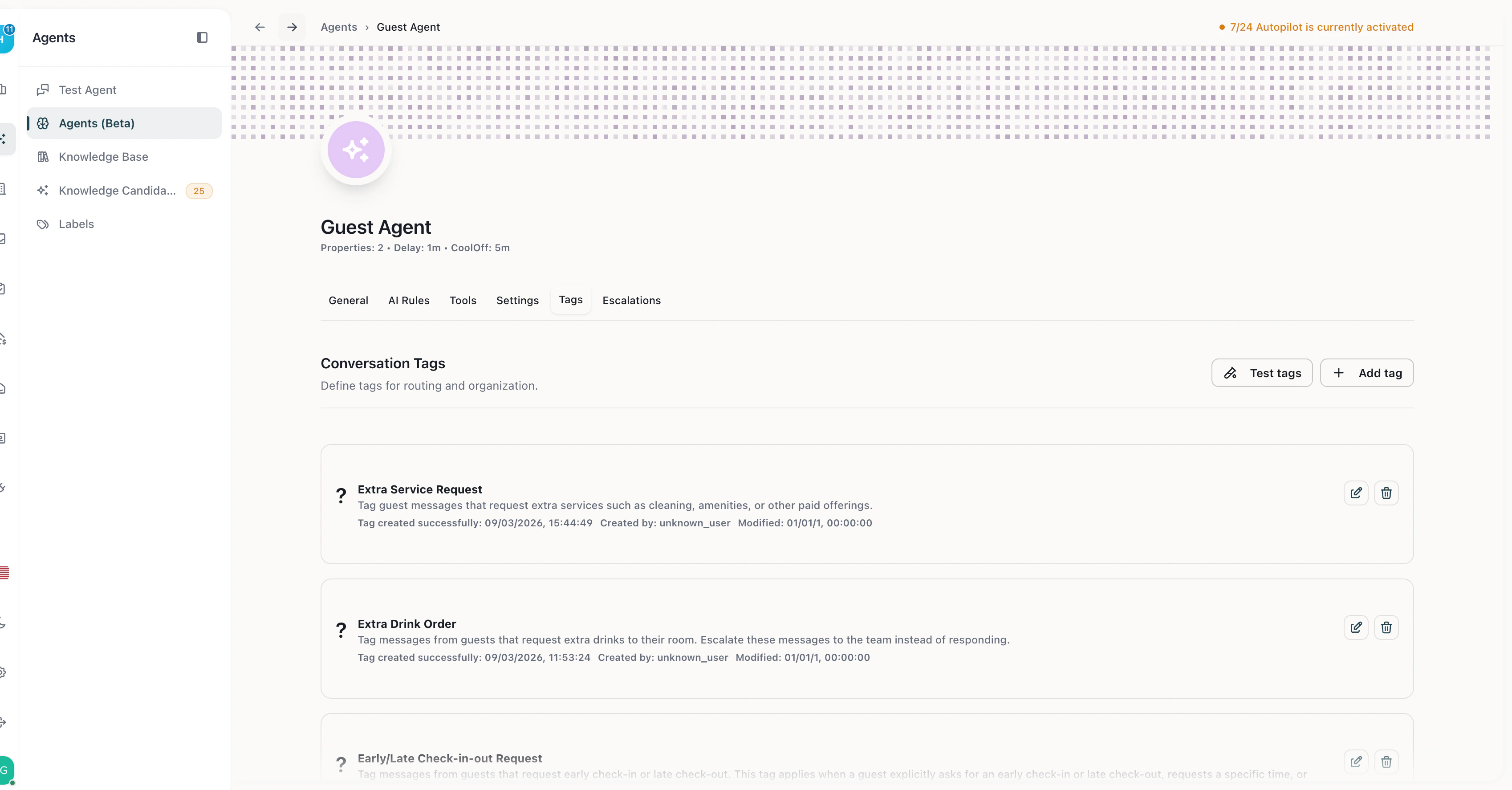
**Quick link:** Open Agent Hub in Cendra — [https://app.cendra.ai/agents](https://app.cendra.ai/agents) — select your agent, then click the **Tags** tab.
## How Tags Work
When a guest sends a message, Cendra's AI evaluates it against your configured tags. If the message matches a tag's criteria, the tag is applied to the conversation. Tags can trigger escalation rules, appear in the inbox for filtering, and help you track patterns.
## Tag Configuration
Each tag has four components:
| Component | Description |
| -------------------- | ------------------------------------------------------------------------------------------------------------- |
| **Title** | Tag name (e.g., "Complaint", "Maintenance Request", "Check-in Question") |
| **Icon** | Emoji for visual identification in the inbox |
| **Escalation Level** | Urgency classification: Low, Medium, High, or Urgent |
| **Description** | Detailed explanation of when this tag should apply — this is what the AI reads to decide if a message matches |
## Escalation Levels
| Level | Color | Typical use |
| ---------- | ------ | ---------------------------------------------------------- |
| **Low** | Green | Routine questions, general inquiries |
| **Medium** | Yellow | Important but not time-sensitive requests |
| **High** | Orange | Issues requiring prompt attention |
| **Urgent** | Red | Critical situations requiring immediate human intervention |
## Example Tags
| Tag | Icon | Level | When to apply |
| ----------------- | ---- | ------ | -------------------------------------------------------------------- |
| Complaint | 😤 | High | Guest expresses frustration, anger, or dissatisfaction |
| Maintenance | 🔧 | High | Guest reports a broken appliance, plumbing issue, or property damage |
| Check-in Help | 🏠 | Medium | Guest needs help with check-in process or access |
| Pricing Question | 💰 | Low | Guest asks about rates, fees, or discounts |
| Cancellation | ❌ | Urgent | Guest wants to cancel or modify their reservation |
| Positive Feedback | ⭐ | Low | Guest shares compliments or positive experience |
 ## Testing Tags
Before deploying, test your tags in the Agent Hub:
1. Navigate to your agent's **Tags** tab
2. Enter a test message in the **test input field**
3. Cendra shows which tags would match the message
4. Adjust tag descriptions until matching is accurate
## Tags + Escalation Rules
Tags work together with [escalation rules](/ai-agents/escalations). Create an escalation rule that triggers when a message matches an urgent tag — this automatically routes critical conversations to your team.
## Tags + AI Rules
Tags also connect to [AI Rules](/ai-agents/ai-rules). Apply an AI Rule restriction to a specific label, and the rule only activates when conversations match certain conditions.
## Testing Tags
Before deploying, test your tags in the Agent Hub:
1. Navigate to your agent's **Tags** tab
2. Enter a test message in the **test input field**
3. Cendra shows which tags would match the message
4. Adjust tag descriptions until matching is accurate
## Tags + Escalation Rules
Tags work together with [escalation rules](/ai-agents/escalations). Create an escalation rule that triggers when a message matches an urgent tag — this automatically routes critical conversations to your team.
## Tags + AI Rules
Tags also connect to [AI Rules](/ai-agents/ai-rules). Apply an AI Rule restriction to a specific label, and the rule only activates when conversations match certain conditions.