> ## Documentation Index
> Fetch the complete documentation index at: https://docs.cendra.ai/llms.txt
> Use this file to discover all available pages before exploring further.
# Escalations
> Cendra escalation rules define when AI agents should hand off conversations to human team members. Configure triggers and actions to ensure complex or sensitive guest issues get human attention.
Cendra escalation rules define when AI agents should hand off conversations to human team members. When an escalation rule triggers, the conversation is flagged in the inbox for your team to handle — ensuring complex or sensitive guest issues get human attention.
**Quick link:** Open Agent Hub in Cendra — [https://app.cendra.ai/agents](https://app.cendra.ai/agents) — select your agent, then click the **Escalations** tab.
## How Escalations Work
Each escalation rule has two parts:
1. **Condition** — what triggers the escalation
2. **Action** — what happens when triggered
## Conditions
Escalation conditions determine when a conversation should involve a human:
| Condition | When it triggers |
| ------------------------------ | ------------------------------------------------------------------- |
| **AI Needs Info** | AI needs additional information it can't find in the knowledge base |
| **AI Missing Info** | AI cannot fully answer the guest's question |
| **Message has urgent tag** | Guest message matches an urgent tag |
| **Message has non-urgent tag** | Guest message matches a non-urgent tag (for monitoring) |
Additional conditions can be configured through custom tag matching — [see Tags](/ai-agents/tags).
## Actions
When a condition triggers, Cendra takes one of two actions:
| Action | Behavior |
| ----------------------- | --------------------------------------------------------------------------------------------------- |
| **Escalate** | AI stops responding. The conversation is flagged for human review. No AI response is sent. |
| **Answer and Escalate** | AI sends a response first (answering what it can), then flags the conversation for human follow-up. |
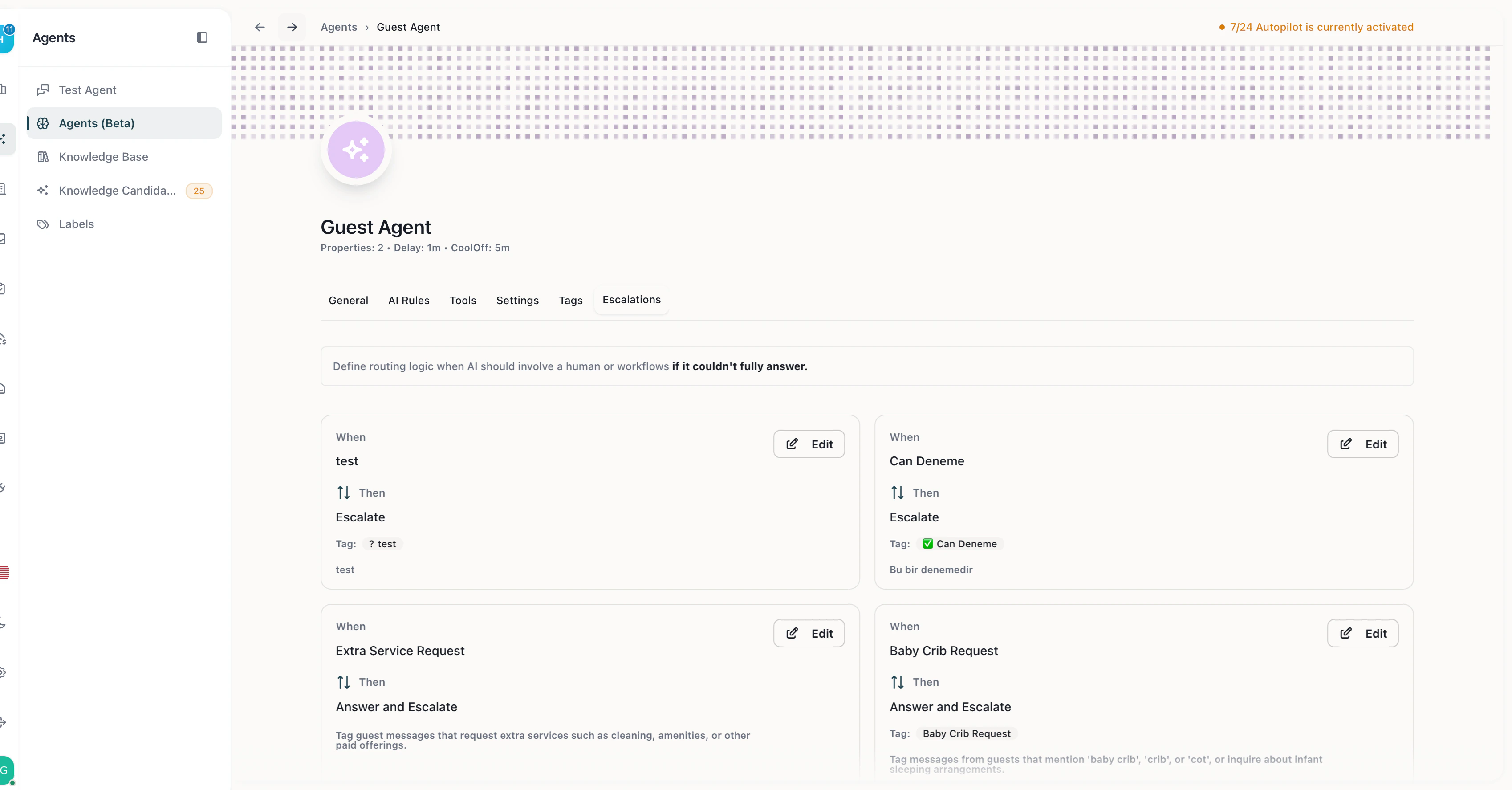 "Answer and Escalate" is useful when the AI can partially help the guest but needs a human to complete the resolution.
## Creating an Escalation Rule
1. Navigate to **Agent Hub → your agent → Escalations**
2. Click **Add Escalation Rule**
3. Select a **condition** from the dropdown
4. Select an **action** (Escalate or Answer and Escalate)
5. Save the rule
## Best Practices
* **Start with more escalations** — when you first go live, escalate frequently. Reduce as you build confidence.
* **Use "Answer and Escalate"** for common questions the AI can partially handle — this keeps the guest engaged while your team prepares a complete answer.
* **Combine with Tags** — create tags for high-priority scenarios (complaints, maintenance, refunds) and set escalation rules that trigger on those tags.
* **Monitor the Dashboard** — track escalation rates to identify patterns and improve your AI's knowledge base.
"Answer and Escalate" is useful when the AI can partially help the guest but needs a human to complete the resolution.
## Creating an Escalation Rule
1. Navigate to **Agent Hub → your agent → Escalations**
2. Click **Add Escalation Rule**
3. Select a **condition** from the dropdown
4. Select an **action** (Escalate or Answer and Escalate)
5. Save the rule
## Best Practices
* **Start with more escalations** — when you first go live, escalate frequently. Reduce as you build confidence.
* **Use "Answer and Escalate"** for common questions the AI can partially handle — this keeps the guest engaged while your team prepares a complete answer.
* **Combine with Tags** — create tags for high-priority scenarios (complaints, maintenance, refunds) and set escalation rules that trigger on those tags.
* **Monitor the Dashboard** — track escalation rates to identify patterns and improve your AI's knowledge base.